A big update for iFutureArt

If you’ve ever written to Support and wondered why the app stayed quiet, here’s what happened. We could read your messages, but we couldn’t reply there. Let’s start with what’s changed. This update makes it easier to talk to us, invite a friend and see what’s happening on a shared canvas.
You can now talk to us in Support
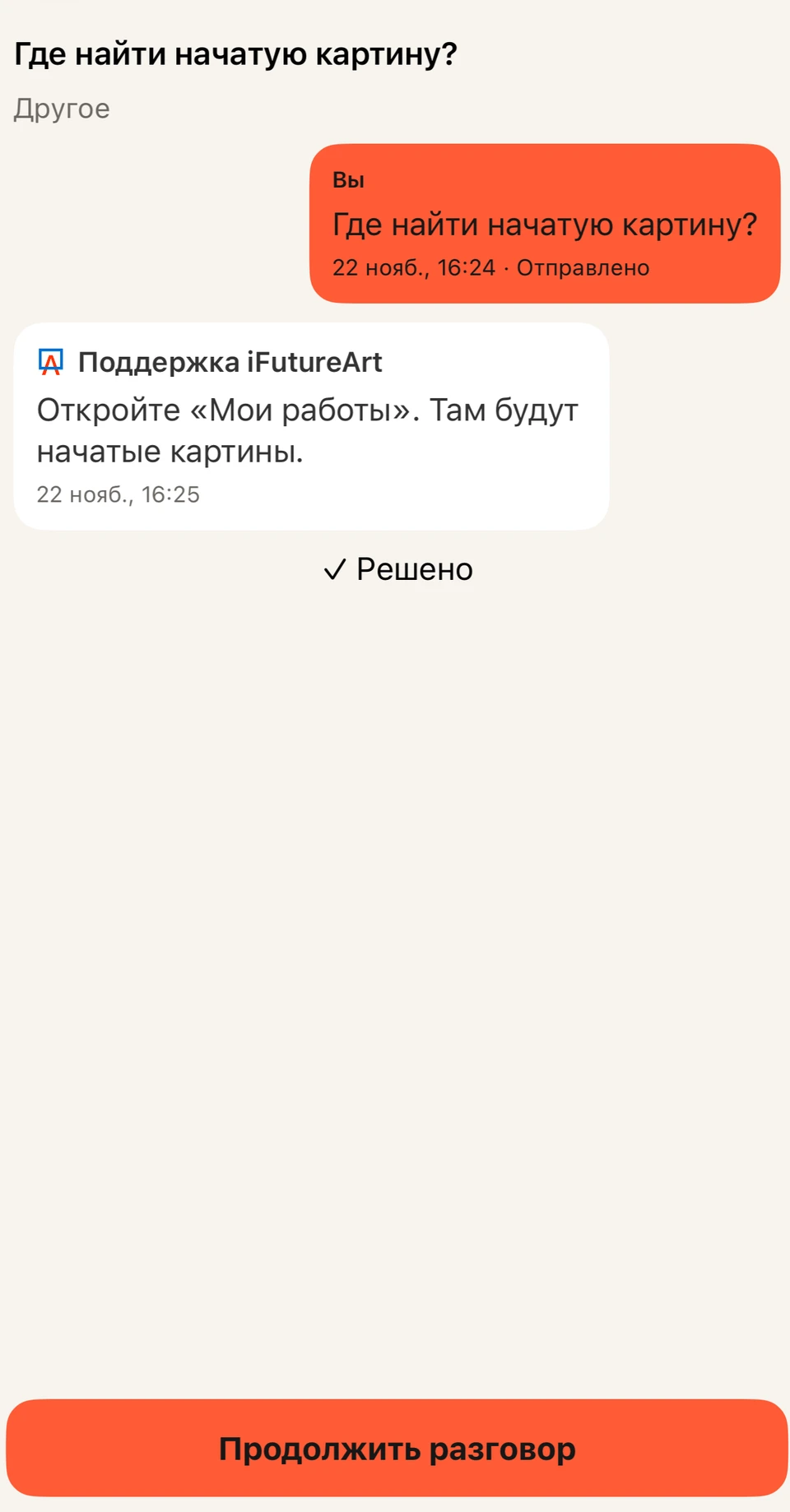
We can reply to your request right in the app. If you have another question, keep the conversation going there. If our advice helped, you can come back and tell us how it went.
Open More, choose Support and send us a message. You’ll find our reply in your list of requests. You can also start from the iFutureArt support page.
You can keep a support conversation going in the iFutureArt web app, too.
Invite a friend with a room code
If a friend is sitting next to you or you’re on a call, just read them the code. Create a room and look for “Room code” on the waiting screen. Tap “Copy code” if you’d like to send it as a message.
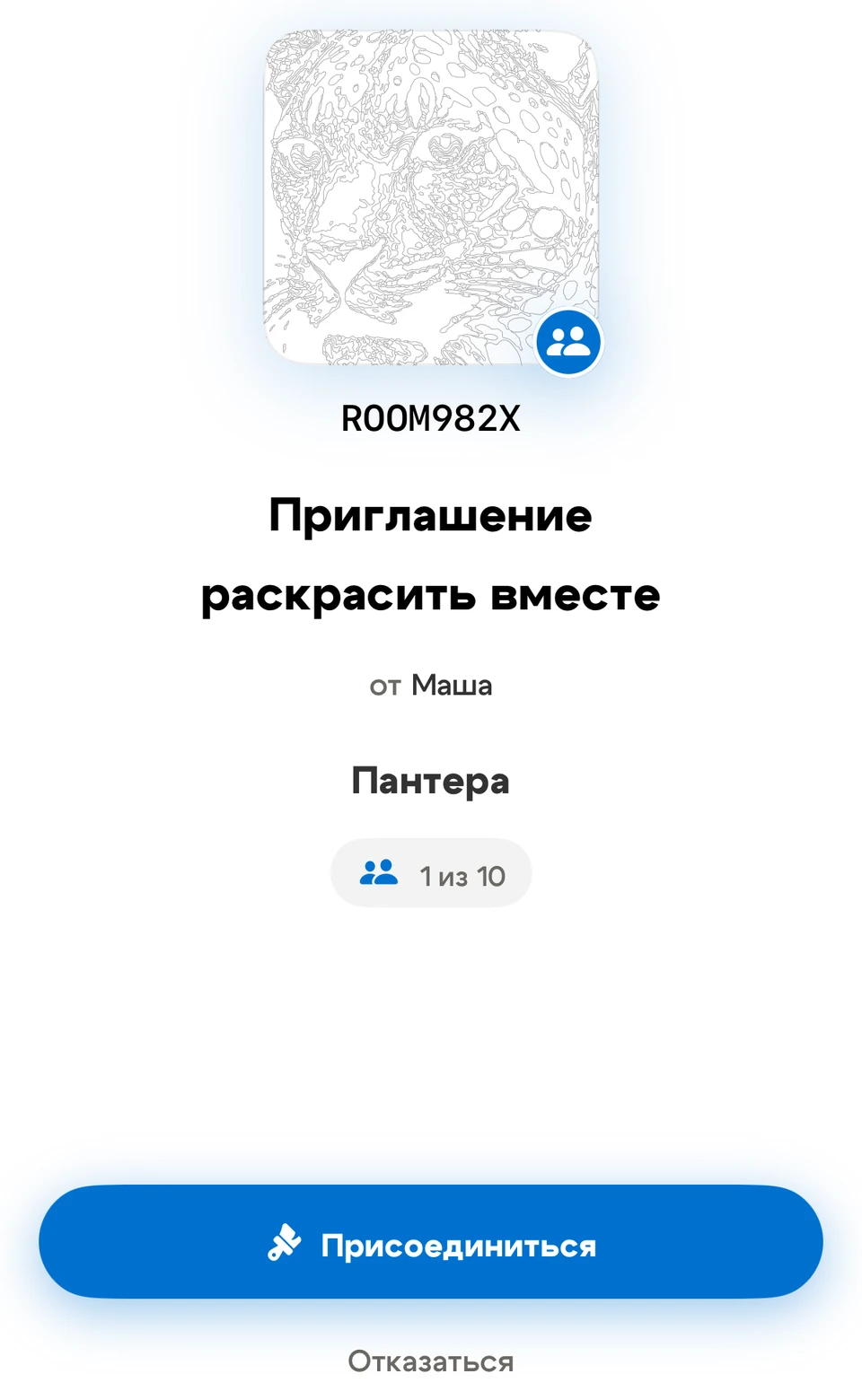
Your friend opens Together, taps Start together, enters the code in “Code or link” and taps “Join.” This opens the same invitation screen as the link, with the picture outline and the name of the person who invited them. If everything looks right, tap “Join room.”
Pick up where you left off yesterday
If you only got as far as the background last night, it’s easier to find that picture again. The new Daily calendar shows your progress for each picture, with separate views for solo coloring and Together.
Tap the date in Daily to open the calendar, then pick a day to open its picture card.
Did you know the daily picture calendar on our website has been there for a while? You can browse the whole archive day by day and see, for example, which picture was featured on your birthday.
See what’s happening on the shared canvas
It’s easy to get caught up coloring your own details. Turn on player highlighting and you’ll see the artist’s name by the area they just colored. If the background suddenly comes to life, you’ll know who to thank.
Find gifts in the daily picture all year round
Sometimes the next brushstroke turns up a surprise. There are five gifts hidden on the shared canvas for the daily picture.
Open Daily and choose “Paint with everyone.” The gift icon on the picture card shows how many are left. Color as you normally would. When you color an area with a gift, 1, 2 or 3 points go straight to you.
Just getting started? Take a look at our guide to coloring together.
Fog rolls in and Swirl shakes up the palette
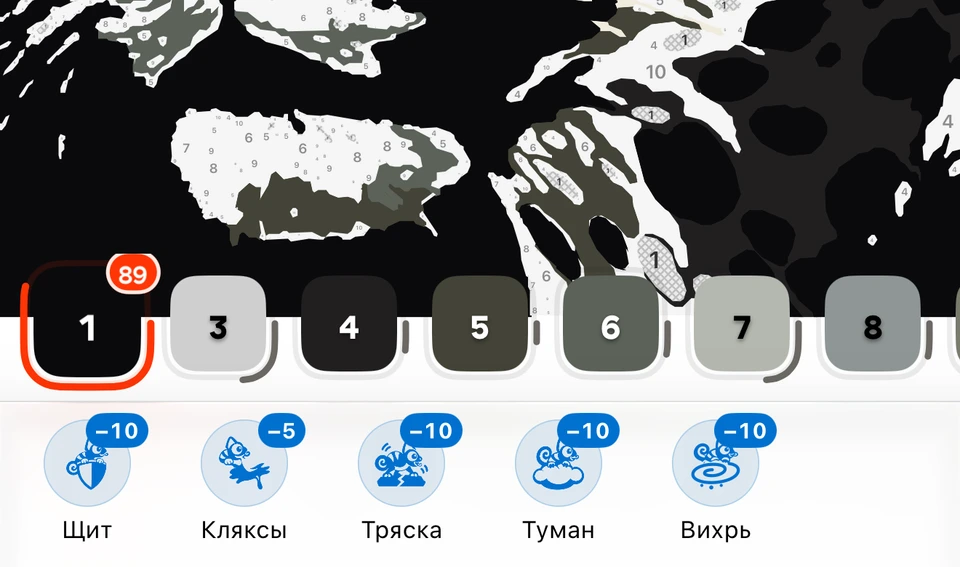
In Together rooms, Fog now drifts across the canvas in clouds. Play Swirl and the colors in your opponent’s palette spin and switch places for a few seconds. Swirl costs 10 points. You can see each prank’s name and price right on the effects panel.
See you at the canvas
The update is coming soon to the App Store and Google Play.
And there’s more! On December 1, we’ll tell you about a New Year surprise in our next post, and it’ll go live in the app that same day. Don’t miss it!